


Initial configuration of Fritzbox 7530
1. Connect the Fritzbox to your DSL connection and plug in the power supply. The LED on the Fritzbox should now flash green.

2. Connect to the Fritzbox via LAN or WLAN, no Internet connection is required.
3. Ideally, a PC should be used for the initial configuration. Open your browser, such as Google Chrome, and visit http://fritz.box
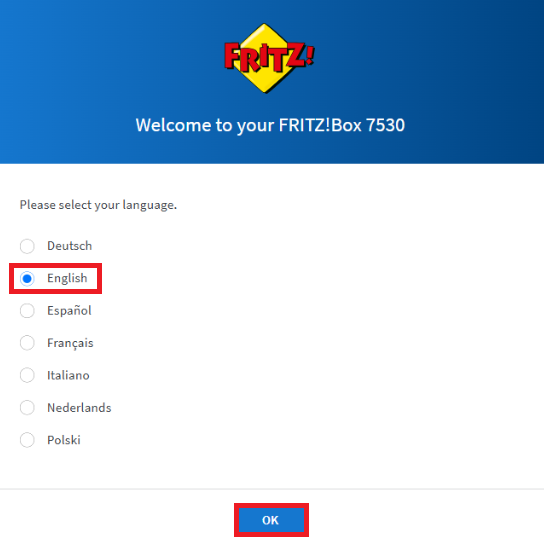
4. Select English and click OK.
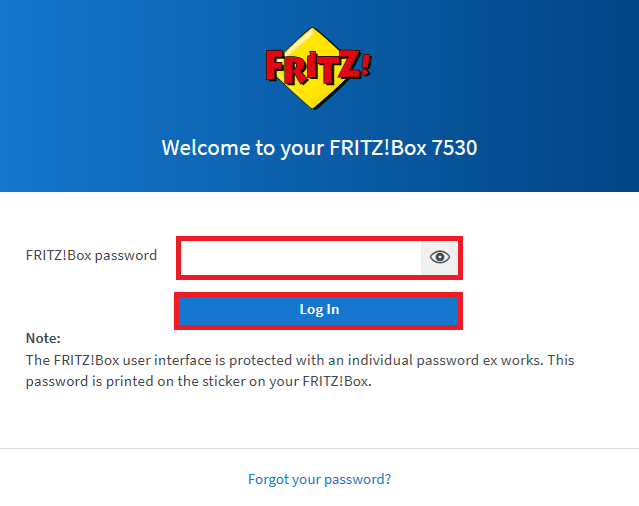
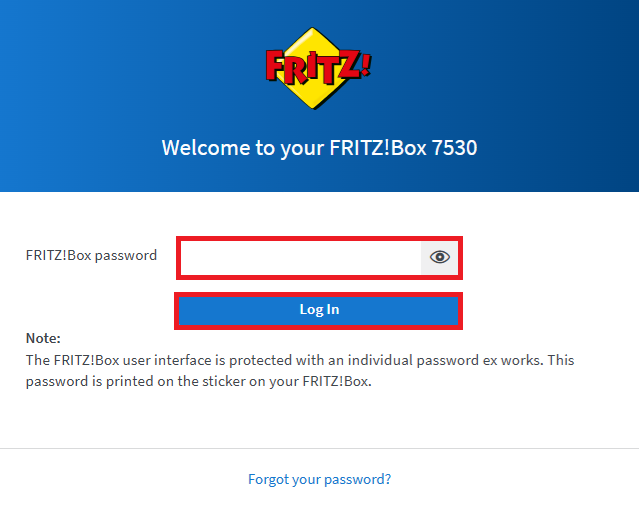
5. The login screen will open, asking you to log in.
Enter the password (on the bottom of the Fritz!Box) and click Log In.
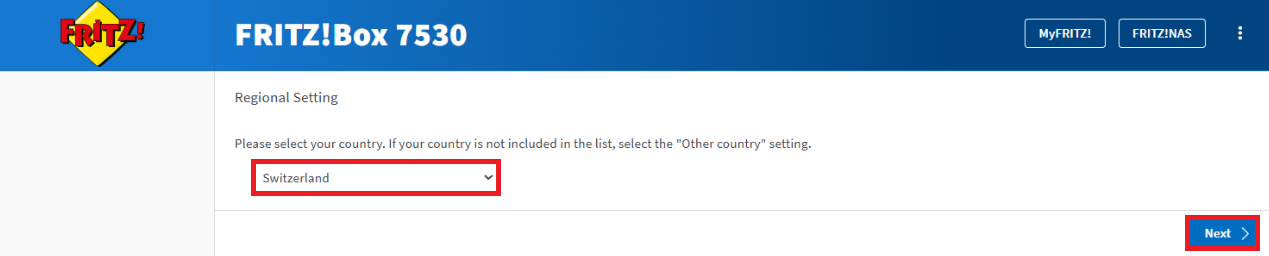
6. Please select Switzerland in the country selection and confirm with Next.
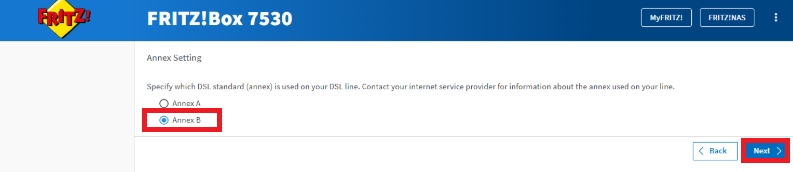
7. Please select Annex B and confirm with Next.
8. The Fritzbox will restart and ask for the password again.

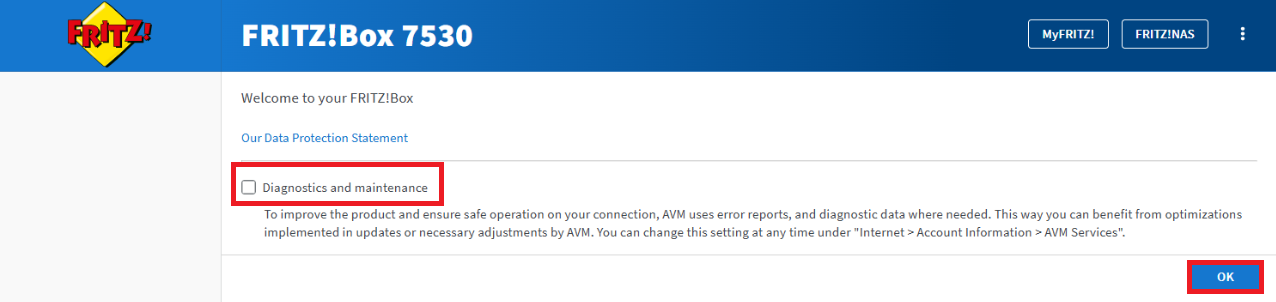
9. Uncheck Diagnostics and Maintenance and confirm with OK.
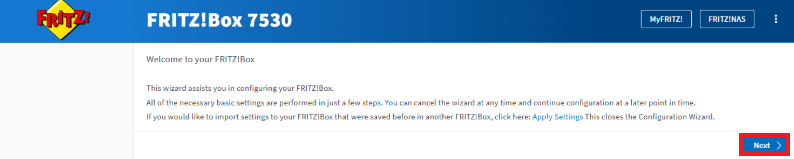
10. Click Next.
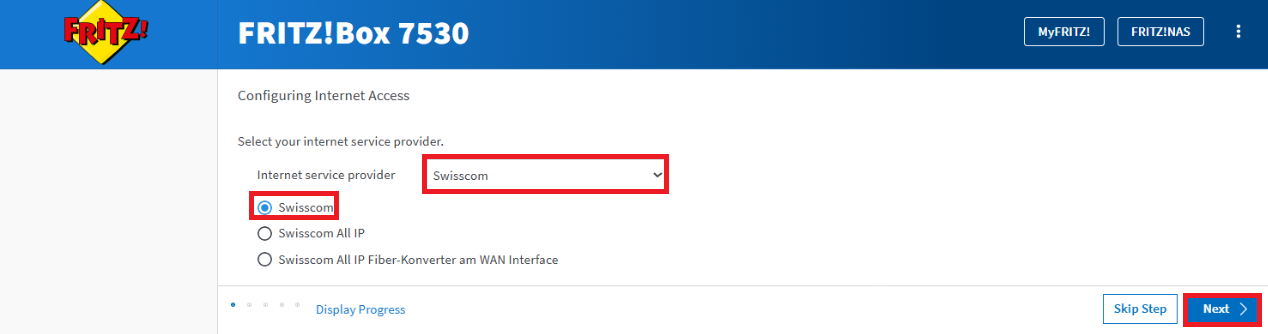
11. Click Please select... and select Swisscom. Confirm with Next.
12. Click Next again.
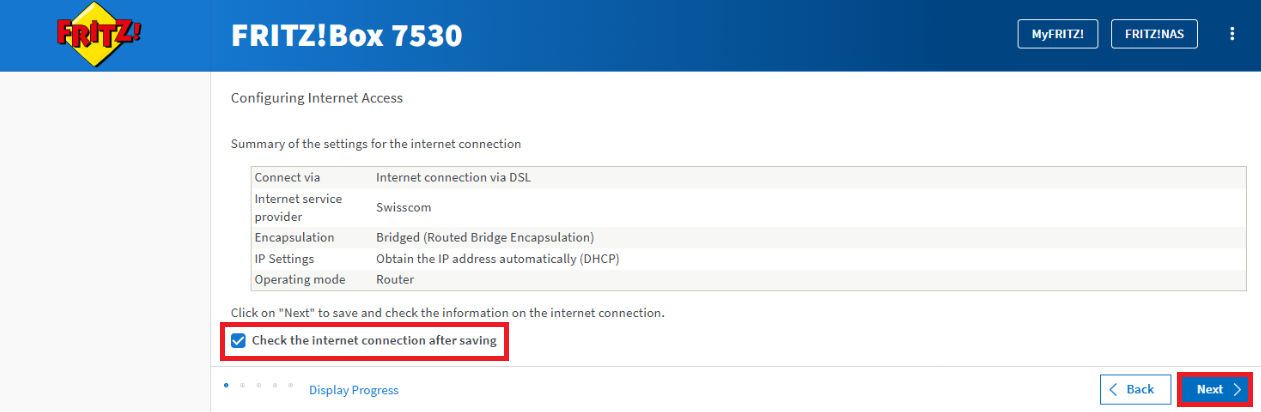
13. If the check was successful, you can click Next. Then click Configure new Telephone Number if you have a phone line. Otherwise, click Skip step and go to step 22.
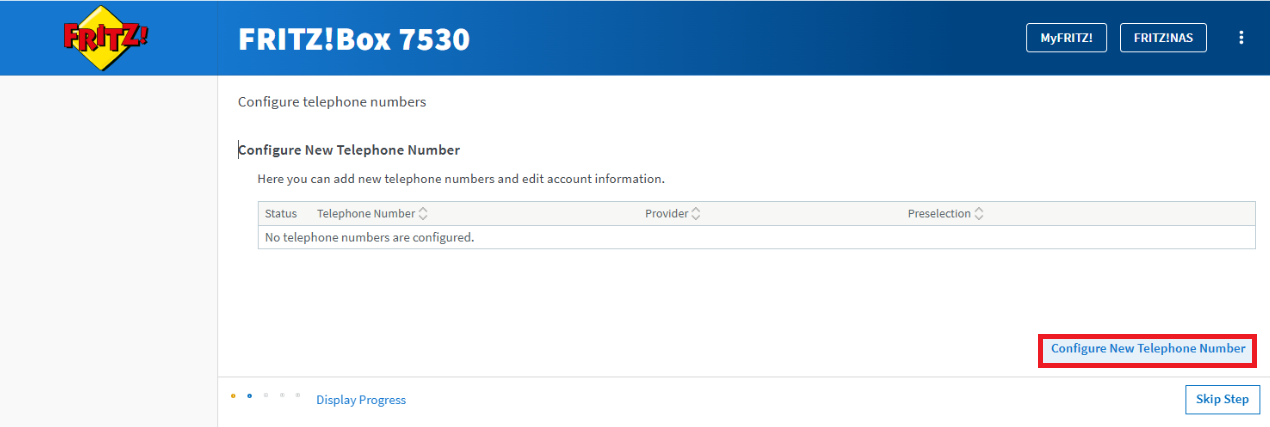
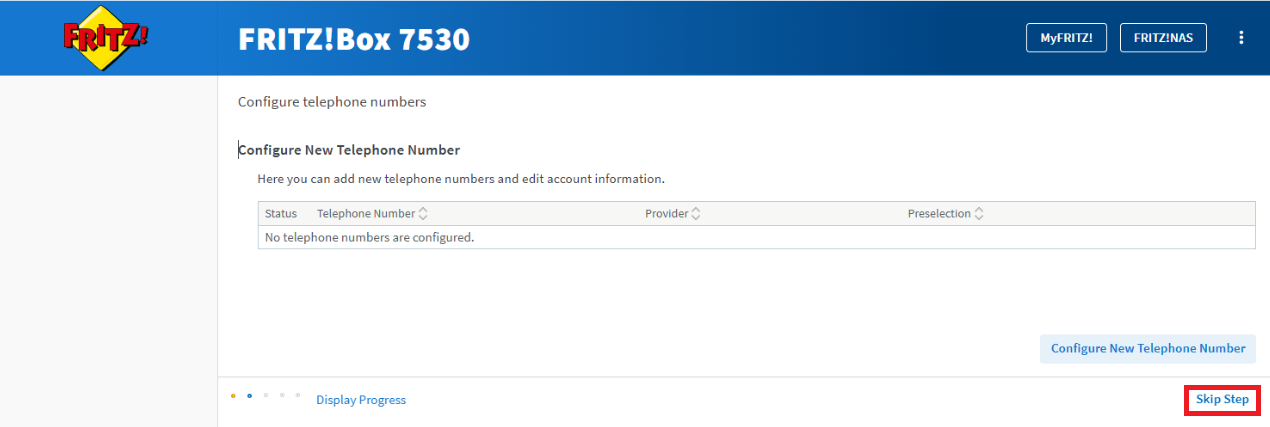
14. Under Telephony provider, select Other provider and enter your phone number in both fields. Then scroll to the bottom.
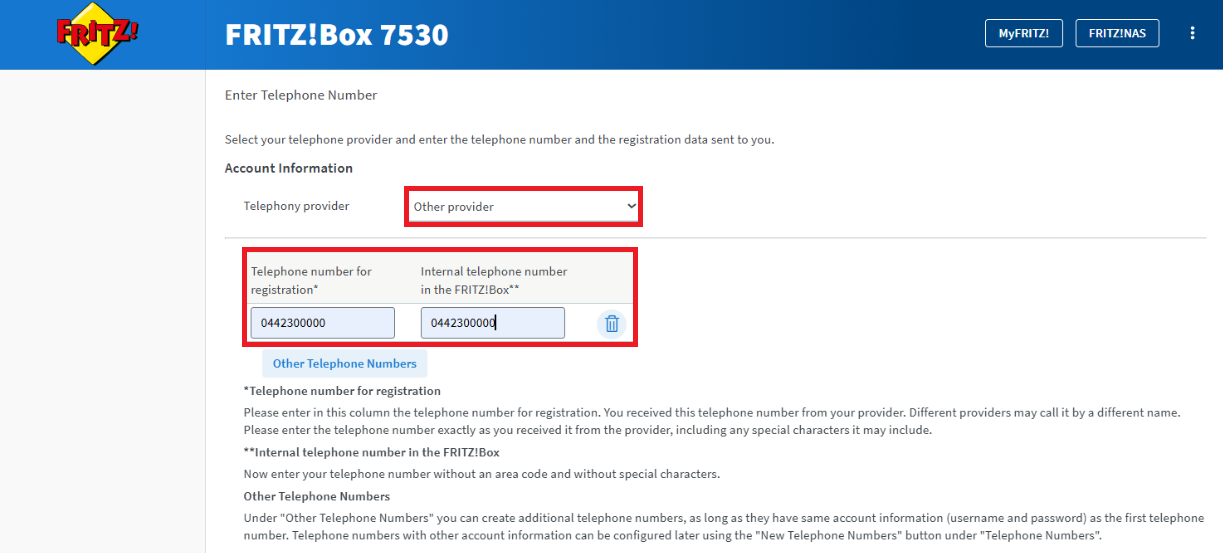
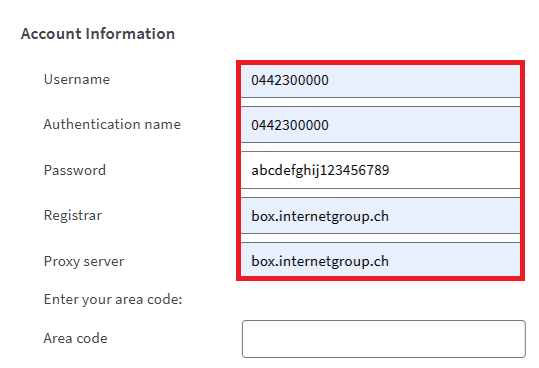
15. Scroll down to the Account Information.
Username: Your phone number e.g. 0442300000
Authentication name: Your phone number e.g. 0442300000
Password: can be found in the details of the customer account for the fixed line product
Registrar: box.internetgroup.ch
Proxy server: box.internetgroup.ch
16. Log in to your www.gigamobile.ch account.

17. To find your telephone access details, click on Services in your customer account.

18. Click the three dots next to the product (e.g. Giga Internet S DSL) and then click Show details.

19. You can retrieve your password as follows
a) Access data: Enter your user name and password in your Fritzbox under Account information.

b) Under additional information you will find the user (e.g. 044 123 45 67) and password for your phone access data. Enter these into your Fritzbox.

20. Then click Additional Settings (red in the image). Select the check box (red in the image). Confirm with Next.
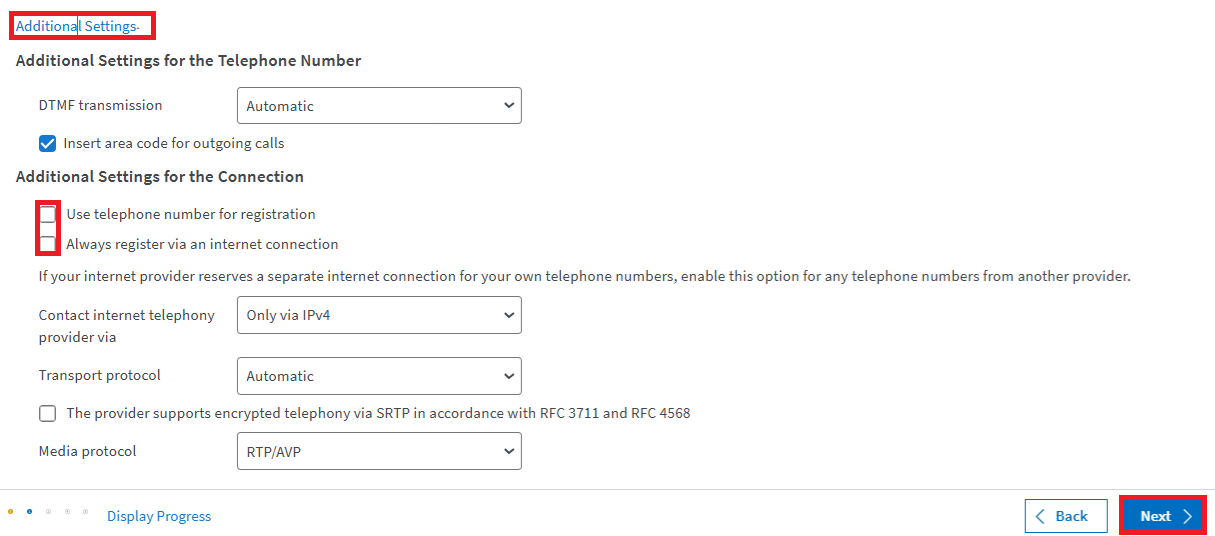
21. Confirm with Next.
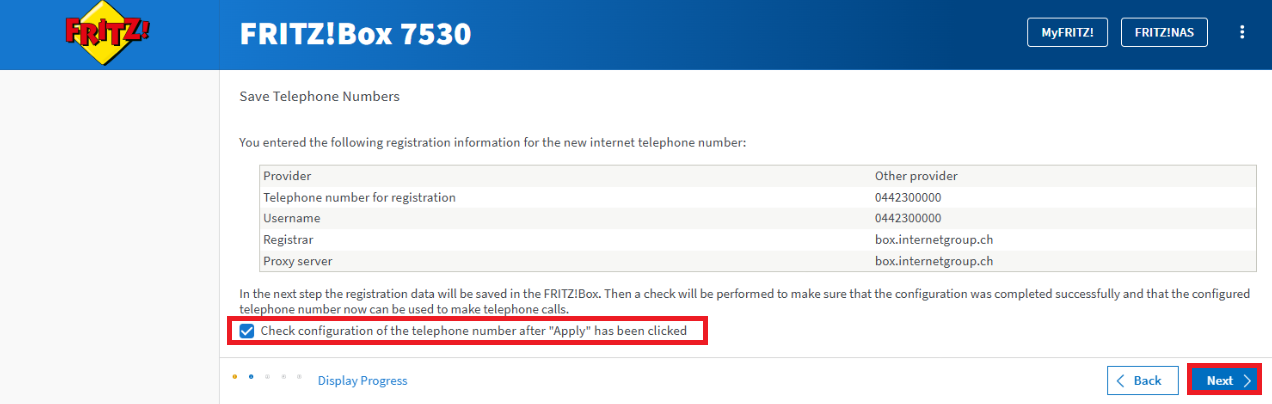
22. The status should be green as shown. Click Conclude step.
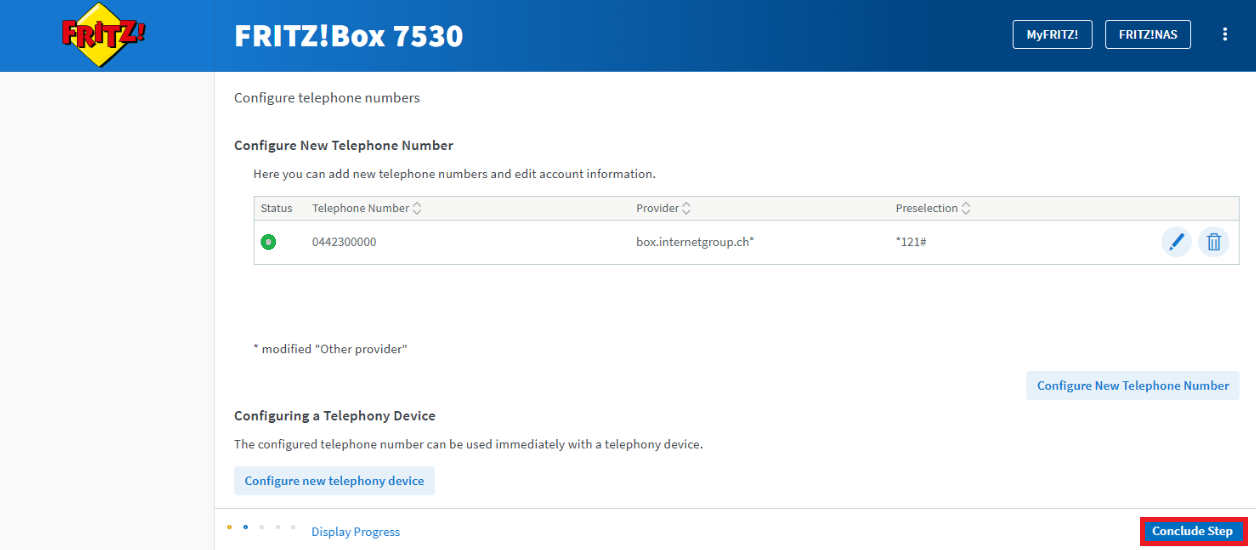
23. Click Conclude Step in the bottom right-hand corner.
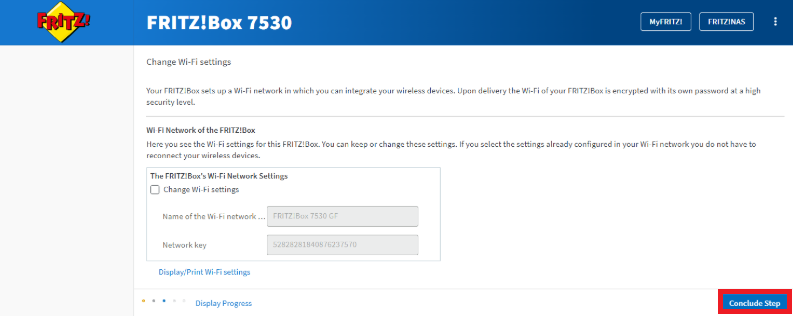
24. Click Conclude Step again at the bottom.
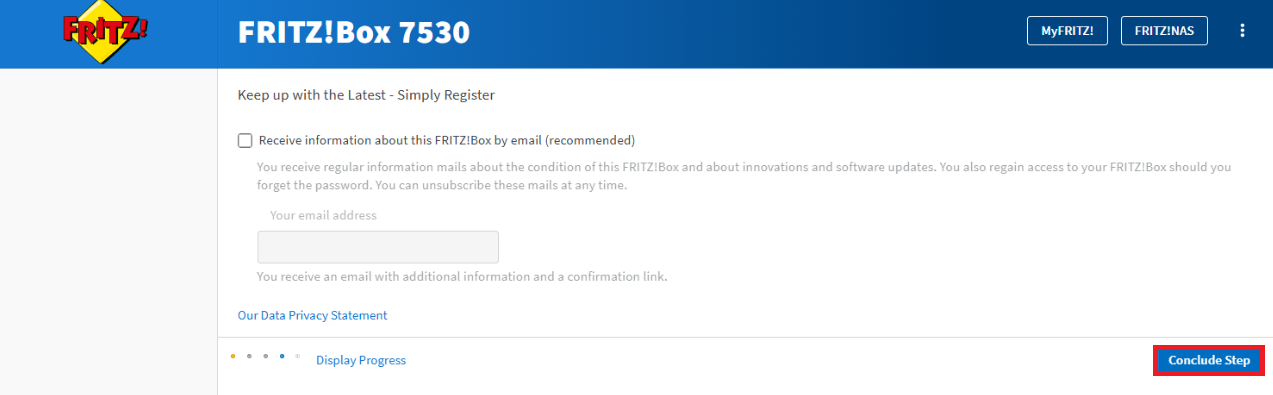
25. Scroll down and select Yes, run update. Then click Conclude step.
26. Your Fritzbox is now fully configured and ready to use.
