


Initial configuration of Fritzbox 5590 AON
1. Connect the Fritzbox to your fibre connection and plug in the power supply. The LED on the Fritzbox should now flash green.


2. Connect to the Fritzbox via LAN or WLAN, no Internet connection is required.
3. Ideally, a PC should be used for the initial configuration. Open your browser, such as Google Chrome, and visit http://fritz.box
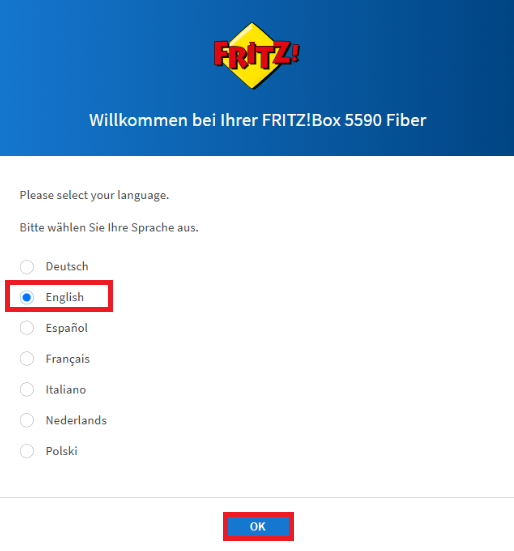
4. Select the desired language.
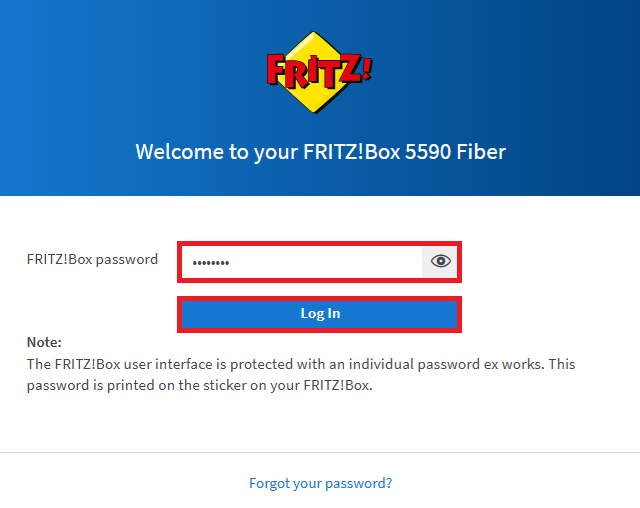
5. The login screen will open, asking you to log in.
Enter the password (on the bottom of the Fritz!Box). Click Log In.
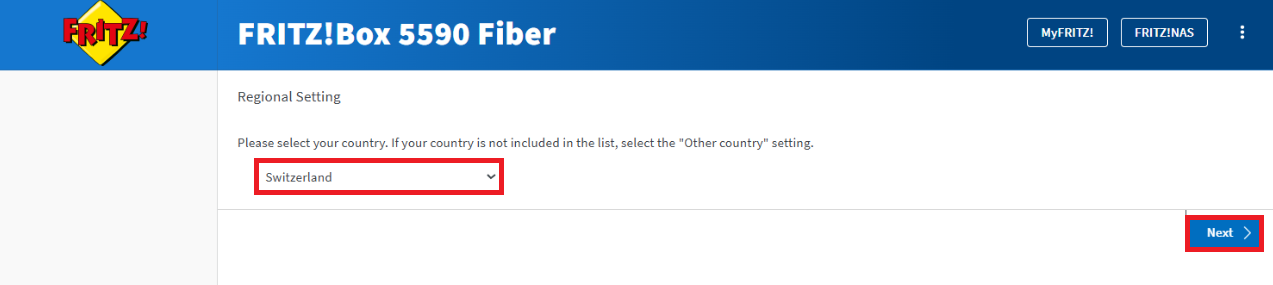
6. Select Switzerland as the country and confirm with Next.
7. The router will reboot.

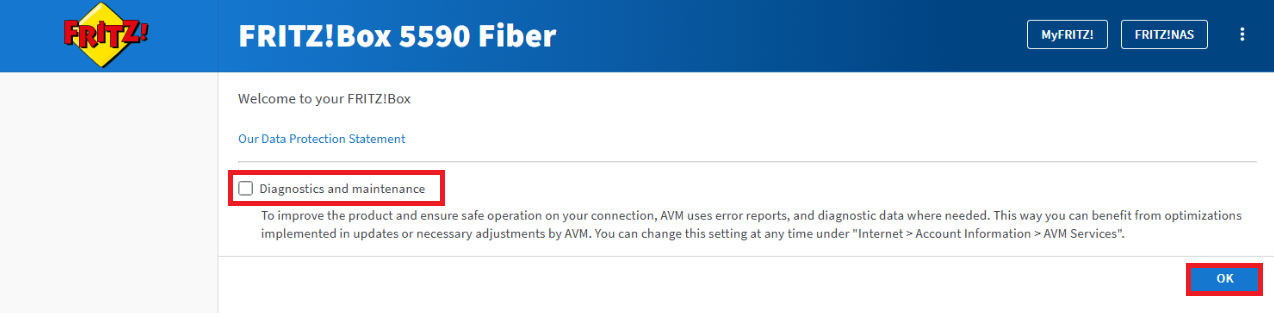
8. Uncheck Diagnostics and Maintenance and confirm with OK.
9. Click Start Configuration to start the setup wizard for your Fritzbox 5590 AON.
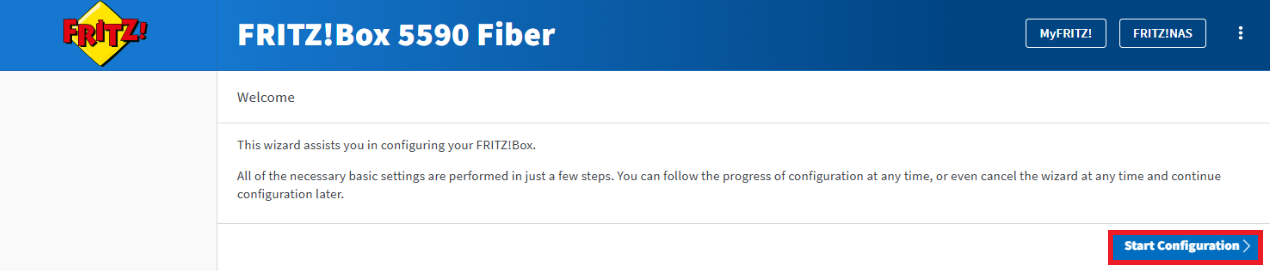
10. Click Please select and select another Internet provider. Confirm with Next.
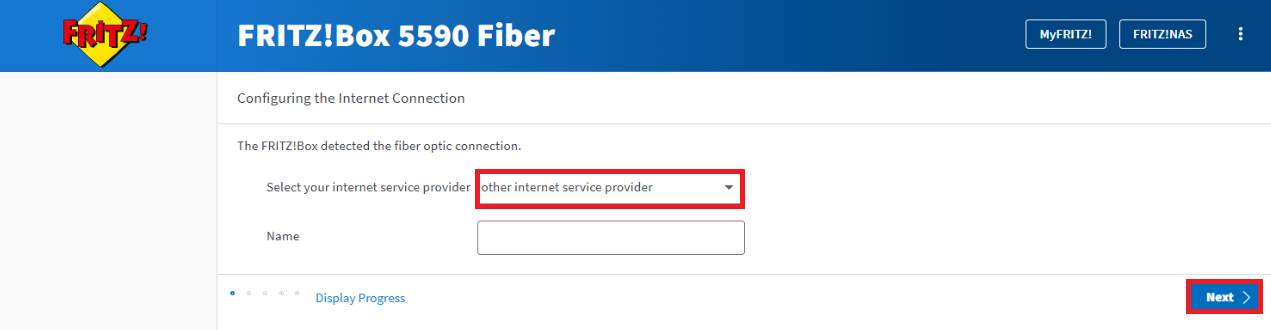
11. For Account information, select No if not already selected. Scroll down and click Change connection settings.
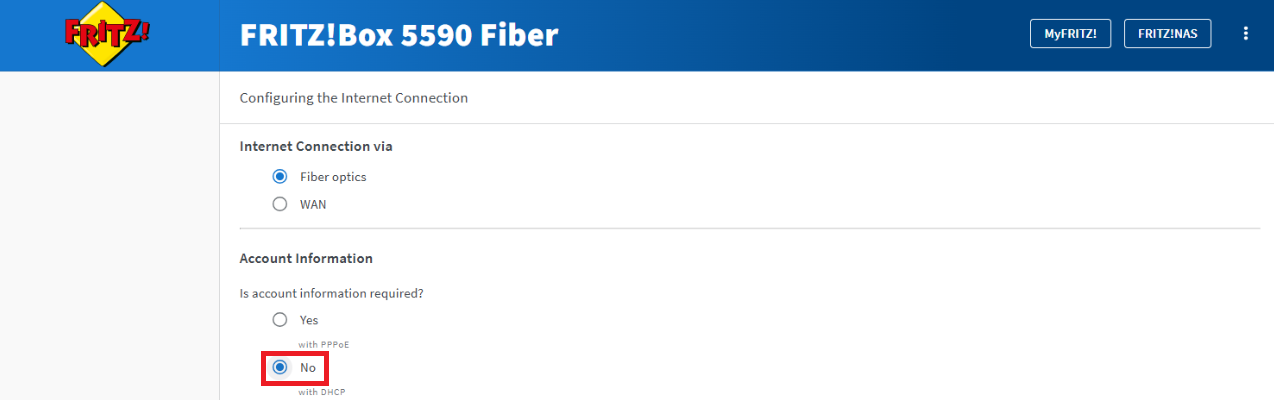
11.a) Configuration City of Zurich and City of Winterthur:
No VLAN ID is required in the City of Zurich and the City of Winterthur. Skip step 11 and proceed to step 12.
Configuration of other Swiss towns and cities:
Click on Use VLAN for Internet access and enter VLAN ID 10. Then click Next.
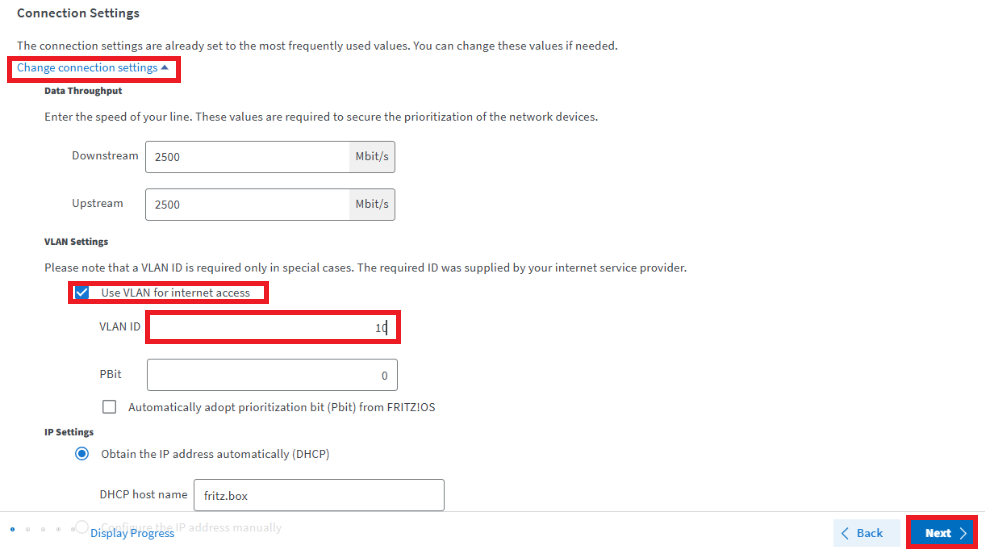
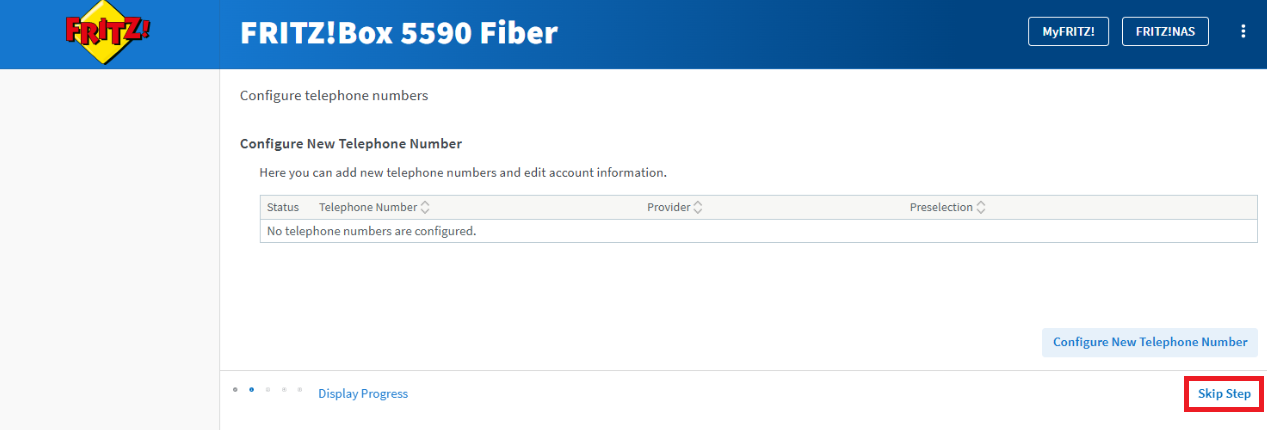
12. If the check was successful, you can click Next. If you do not have a phone number, click Skip Step and go to step 23.
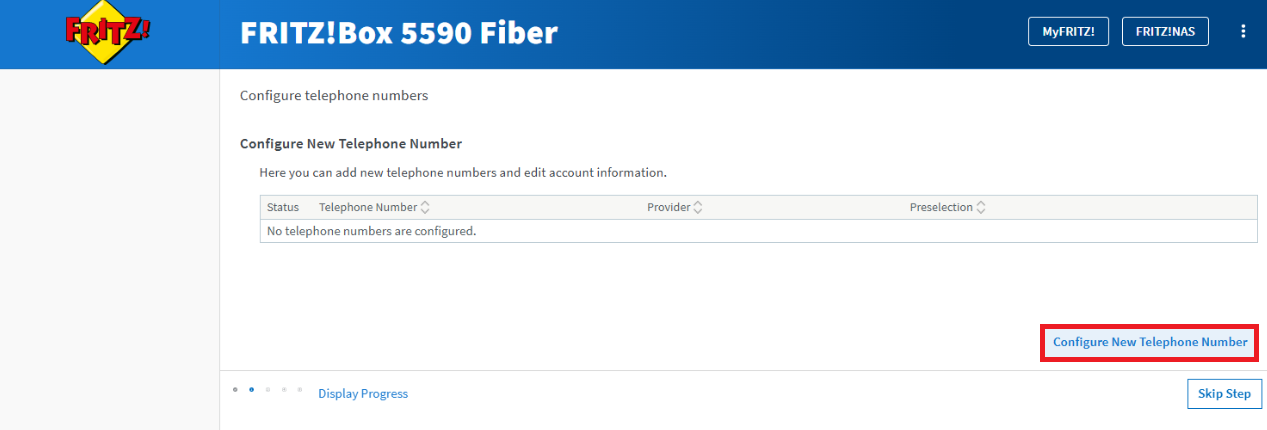
13. Click Configure New Telephone Number.
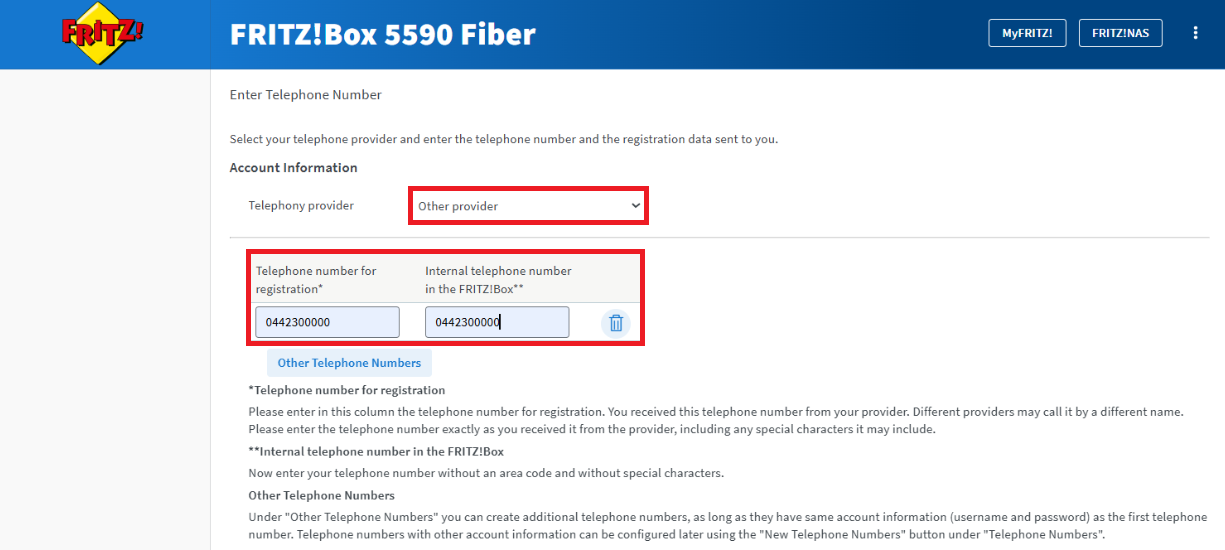
14. Under Telephony provider, select Other provider and enter your phone number in both fields. Then scroll to the bottom.
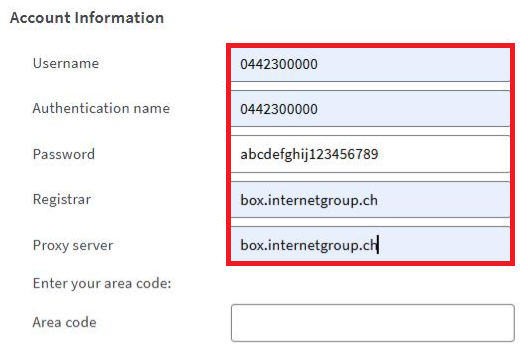
15. Scroll down to the Account information.
Username: Your phone number e.g. 0442300000
Authentication name: Your phone number e.g. 0442300000
Password: In the customer account for the fixed line product in the details (see step 15)
Registrar: box.internetgroup.ch
Proxy server: box.internetgroup.ch
16. Go to www.gigamobile.ch and click on Login to log in to your account.

17. To find your telephone account information, click on Services in your customer account.

18. Click the three dots next to the product (e.g. Giga Internet S Fibre) and then click Show details.

19. You can retrieve your password as follows
a) Account information: Enter the user name and password in your Fritzbox under Login.

b) Under additional information you will find the user (e.g. 044 123 45 67) and password for your phone access data. Enter these into your Fritzbox.

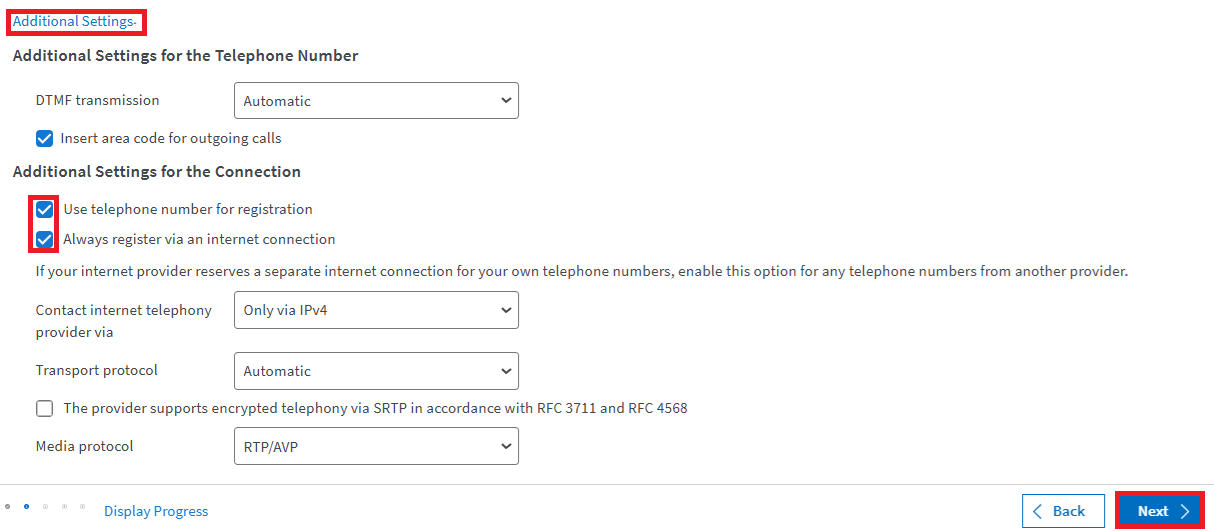
20. Once you have entered all the details in the Account information section, click Additional Settings (red in the image). Select the checkboxes (red in the image). Click Next to complete the setup.
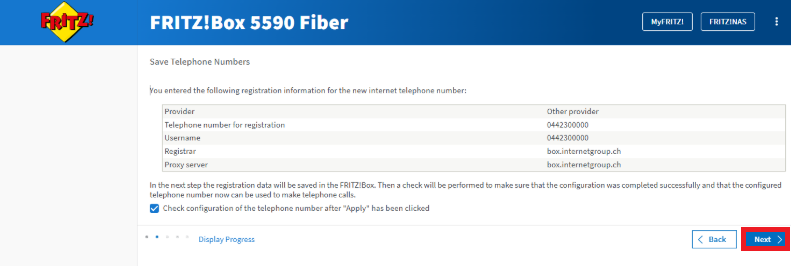
21. Confirm with Next.
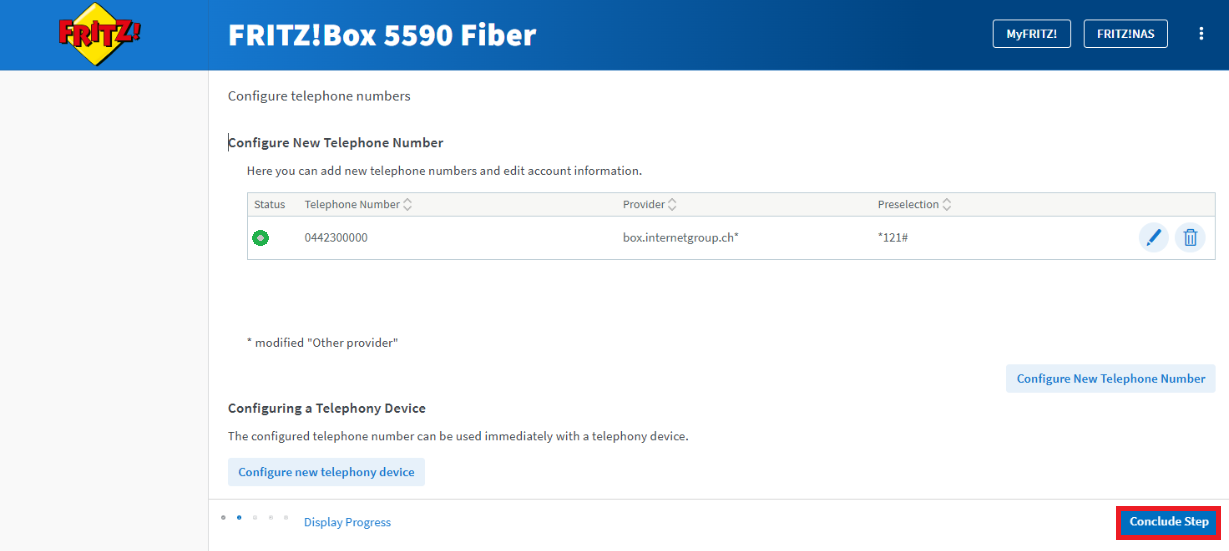
22. The status should be green as shown. Then click Conclude step.
23. Click Conclude step in the bottom right-hand corner.
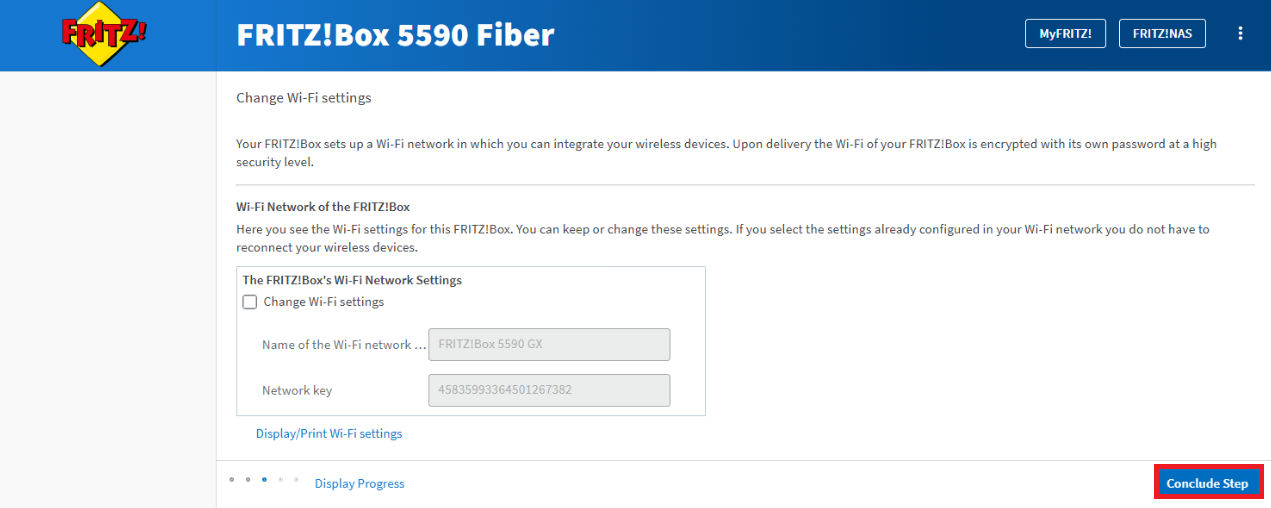
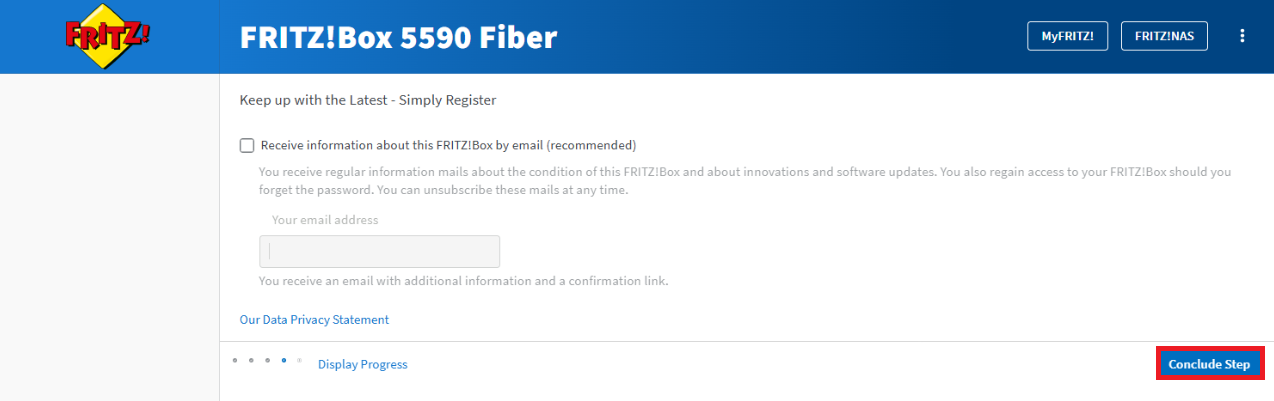
24. Click Conclude step again at the bottom.
25. In the last setup step, the Fritzbox checks if the FritzOS (the Fritzbox software) is up to date. Do not click Next until the check is complete.
26. Your Fritzbox is now fully configured and ready to use.
